Pending Campaign Details Panel
The Pending Campaign Details panel is used to review and send sales campaigns that have been added but not sent. This section can also be used to edit proposals for customers or remove customers from the campaign.
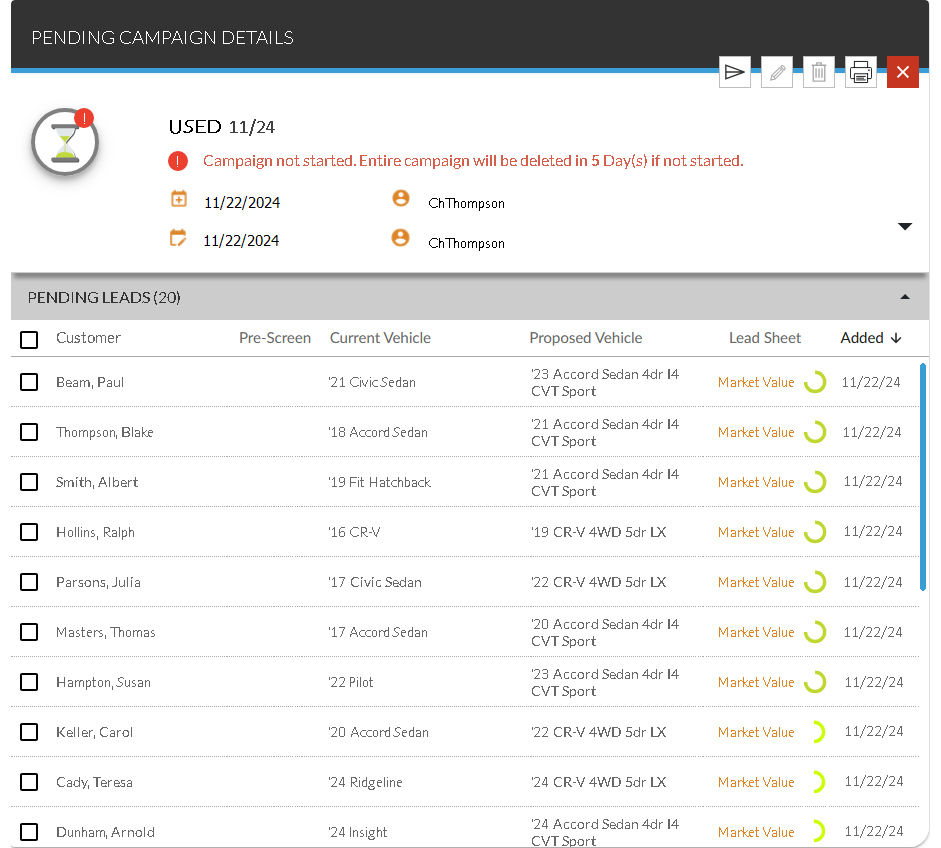
When this section is accessed, a message displays in the unlabeled General Information section indicating the number of days remaining until the pending campaign is removed from the XtreamService application.
Note - Leads added to a sales campaign are not available for use in other sales campaigns until the first sales campaign has been either sent or deleted. Sales campaigns remain in pending status for a maximum of five days before they are automatically deleted from the XtreamService application. Once a pending campaign is deleted, the leads are removed from the campaign and can be added to a new sales campaign.
Note - Pre-screen results are only available if FOCUS or the Customer application
In addition, clients that have been pre-approved for financing or for which the pre-screen requests are still processing cannot be removed from campaigns. Campaigns containing these clients cannot be deleted. Furthermore, campaigns containing clients that have been pre-approved for financing must be sent.

|
To access the Pending Campaign Details panel, click a link in the Campaign Name column on the Pending Campaign panel. |
Pre-screen requests can be sent for customers to identify credit worthiness before contacting the customer. To send a pre-screen request for a customer, select the check box corresponding to the customer and click the  (Pre-Screen) icon. The Request Pre-Screen window displays, where the pre-screen request can be sent. Results are received the following morning.
Note - Pre-screen results are only available if FOCUS or the Customer application
Once the customers on the pending sales campaign should be contacted, the campaign can be sent to FOCUS or the Customer application. To send a pending sales campaign, click the  (Send) icon. The Ready to Start Campaign window displays, where the sales campaign can be reviewed and sent.
The proposed vehicles and deal information for customers can be edited using this screen. To edit the proposed vehicle or deal assigned to a customer, select the check box corresponding to the customer and click the  (Edit) icon. The Edit Proposal window displays, where details for the proposed deal can be edited and saved. For a procedure on editing a proposal, refer to How to Edit a Proposal.
Note - Proposals that are assigned the Market Value lead sheet type cannot be edited.
If it is determined that a customer should not be contacted, such as if a pre-screen request is submitted and the customer is identified as likely not being able to obtain financing, the customer can be removed from the pending sales campaign. To remove customers from a campaign, select the check boxes corresponding to the customers to remove and click the  (Delete) icon. A message window displays, confirming that the selected customers should be removed from the campaign. Click the REMOVE button to remove the customers from the campaign.
Additionally, the Pending Campaign Details panel can be used to print the lead sheets for customers included in the sales campaign. To print the lead sheets, click the  (Print) icon. A new browser tab displays, where the lead sheets can be reviewed and printed.
 General Information Section
The unlabeled General Information section is used to review basic information about the pending sales campaign. When the Pending Campaign Details panel is accessed, a message displays, indicating the number of days remaining until the pending campaign is removed from the XtreamService application. Alternatively, if a pre-screen request has been submitted for one or more customers on the pending sales campaign, a message displays, indicating the status of the pre-screen request.
Note - Pre-screen results are only available if FOCUS or the Customer application
When a sales campaign is sent, Email messages are automatically sent to customers included in the campaign, and leads are sent to FOCUS or the Customer application, where the appropriate schedules can be created. To send the leads to FOCUS or the Customer application and select a custom Email message template, select the Send Custom Communication Using Bulk Mail check box before sending the campaign. For more information on defining settings for automated Email messages, contact XtreamService Support at (800) 767-0080 and select option 3 followed by option 5.
The following items are available in the General Information section.
Title: (Not labeled) The name of the campaign displays.
 (Date Added): The date the campaign was created displays.
 (Added By): The User ID of the user who created the campaign displays.
 (Last Updated): The date the campaign was last updated displays.
(Updated By): The User ID of the user who last updated the campaign displays.
Send Custom Communication Using Bulk Mail: Select this check box to send the leads included in the sales campaign to FOCUS or the Customer application where the appropriate bulk mail schedules are automatically created and a custom Email message template can be selected. Clear this check box to automatically send Email messages to the included customers and to send leads to FOCUS or the Customer application.
Note - This check box is only available if FOCUS or the Customer application
For more information on defining Email message templates, contact XtreamService Support at (800) 767-0080 and select option 3 followed by option 5.
Pending Leads Section
The Pending Leads section is used to review information for customers added to the selected sales campaign. Customer information displays in this section based on the order in which customers were added to the sales campaign.
Click any column heading to sort the customers. The customers are re-sorted by the entries in the selected column in ascending order, and the  (Ascending) icon displays to the right of the selected column heading.
To change the sort to descending order, click the same column heading again. The customers are re-sorted in descending order, and the  (Descending) icon displays to the right of the selected column.
The following columns display in the Pending Leads section.
Customer: The name of the customer displays.
Pre-Screen: An icon indicating the credit worthiness of the prospect displays.
The following icons can display:
-
 (Approved). The prospect was pre-approved for financing.
 -
 (No Hit). Credit information could not be found for the corresponding name and address.
 -
 (No Offer). The prospect was denied for financing.
 -
 (Not Applicable). A pre-screen request cannot be sent for various reasons, such as if the prospect is a business. Hover the mouse cursor over this icon to display a tooltip indicating the reason the request cannot be sent.
 -
 (Pending). The pre-screen request is still processing.
Note - Pre-screen results are only available if FOCUS or the Customer application
Current Vehicle: The year and model of the customer's current vehicle display.
Proposed Vehicle: The year and model of the customer's proposed vehicle display.
Lead Sheet: (Link) The lead sheet assigned to the customer displays as a link. Click the link to display the Lead Sheet panel, where additional details about the customer can be viewed.
Prediction Indicator: (Not labeled) An icon displays to indicate how likely the corresponding customer is to purchase a vehicle.
The following icons can display.
-
 (Okay)
 -
 (Good)
 -
 (Great)
 -
 (Wow)
(Wow)
Added: The date that the customer was added to the campaign displays.
Click here for a list of products that may be mentioned in this help file.